ECA Payment in SchoolsBuddy
Extra Curricular Activites (ECAs) are charged to parents in the 3rd week of Term. You will receive a reminder email which will include a payment link and additional details.
Payments can be made securely via credit card using the Stripe payment system.
Please note:
The ECA fee shown in SchoolsBuddy reflects the full-term amount.
Any necessary adjustments (such as cancellations, student participation in the School Year Camp, or exceptional circumstances including injury, illness lasting more than one day, or hospitalization—supported by a doctor’s certificate) will be processed and fees refunded directly to your SchoolsBuddy payment wallet.
To check your account status, please log into SchoolsBuddy. You will be able to view the amount owed for the Sports and ECA activities your child is enrolled in.
If an ECA session has been cancelled, a credit will be issued to your account and applied to future term activities.
For ease of use, it is recommended to download the SchoolsBuddy app which will make navigation and payment easier for you.
Making a Payment for Fees already charged
From the home page you can see any fees outstanding. You can enter the Fees Summary page by clicking on either 'Fees' or 'Outstanding Fees'.
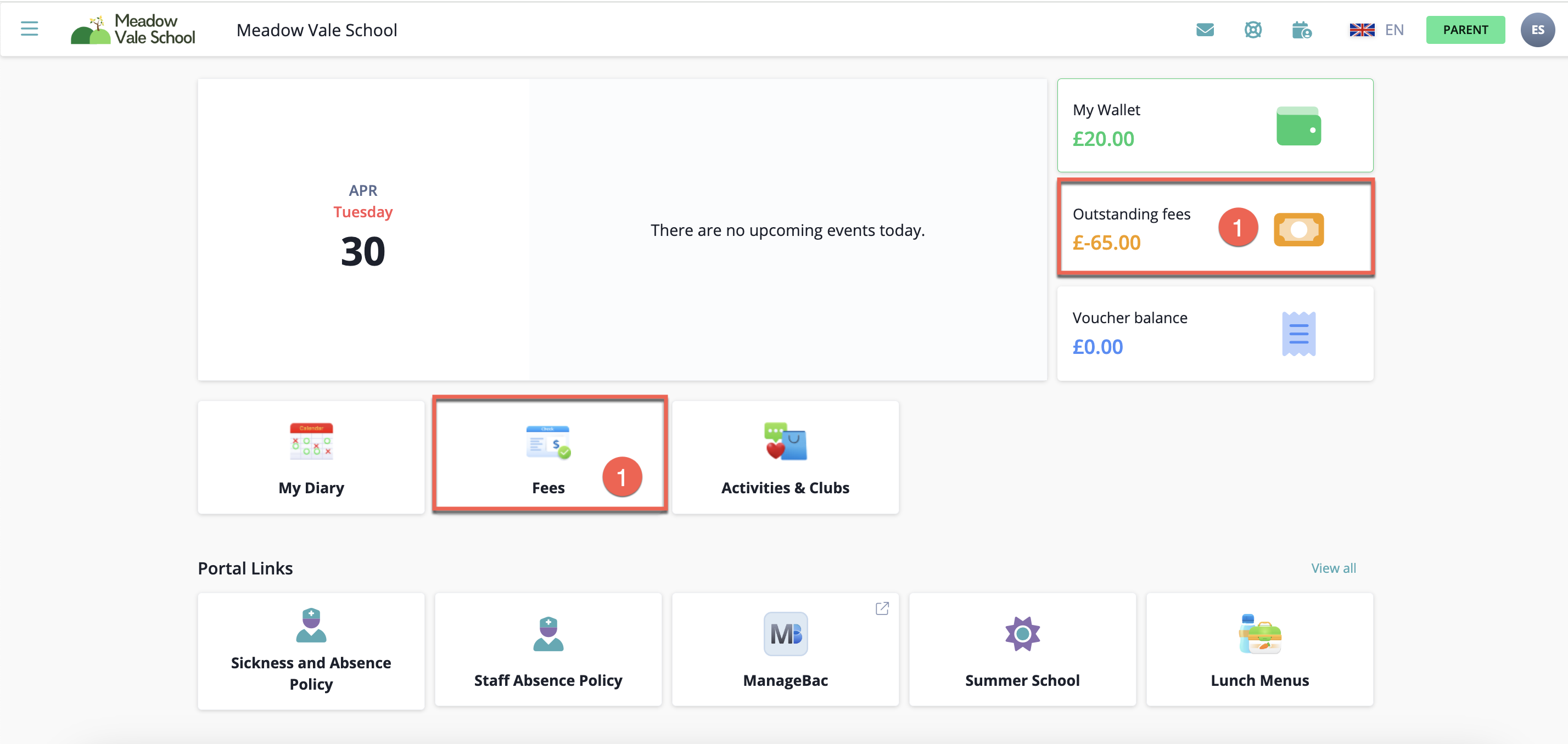
- When selected, a summary of the fees you owe will be displayed. An example of this is shown in the image below.
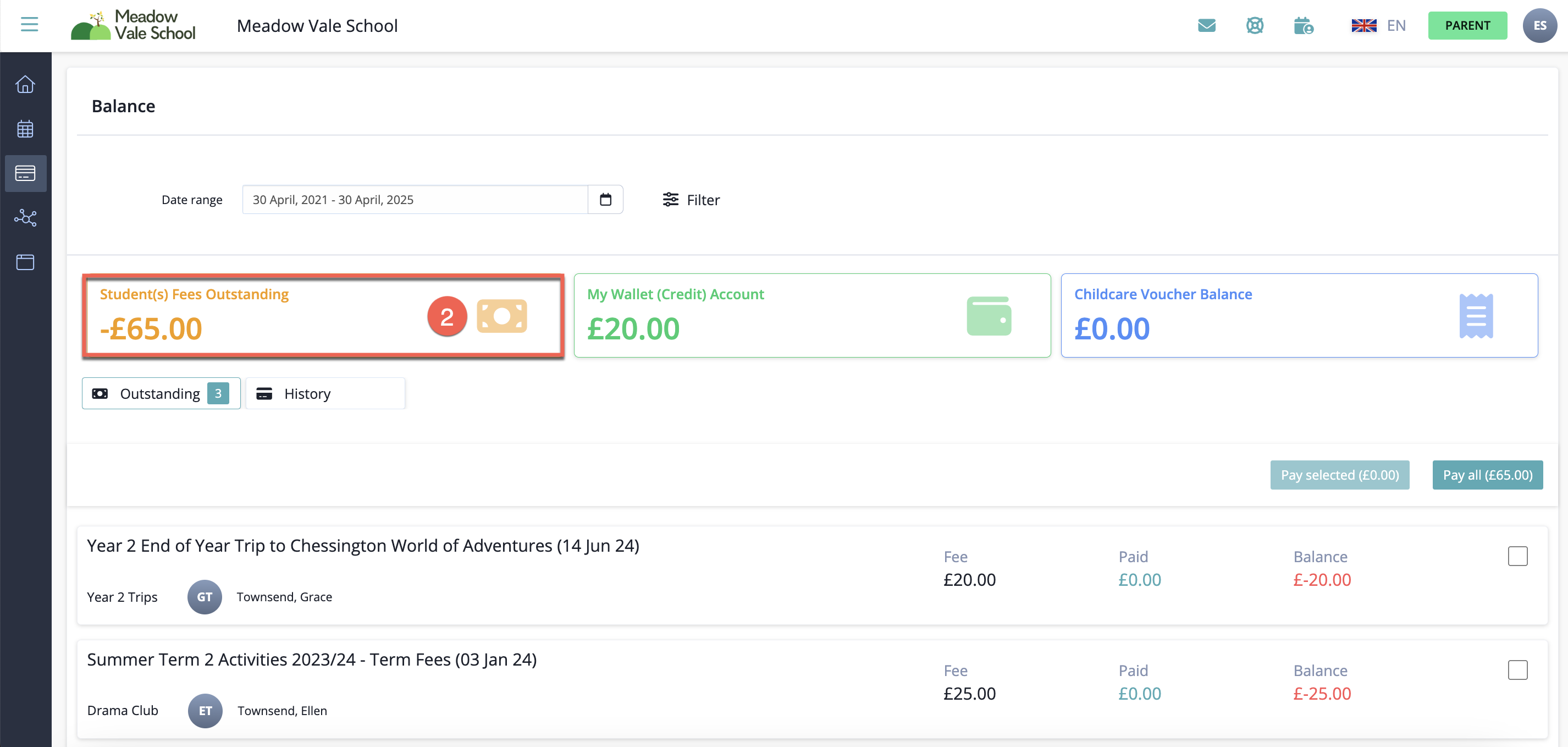
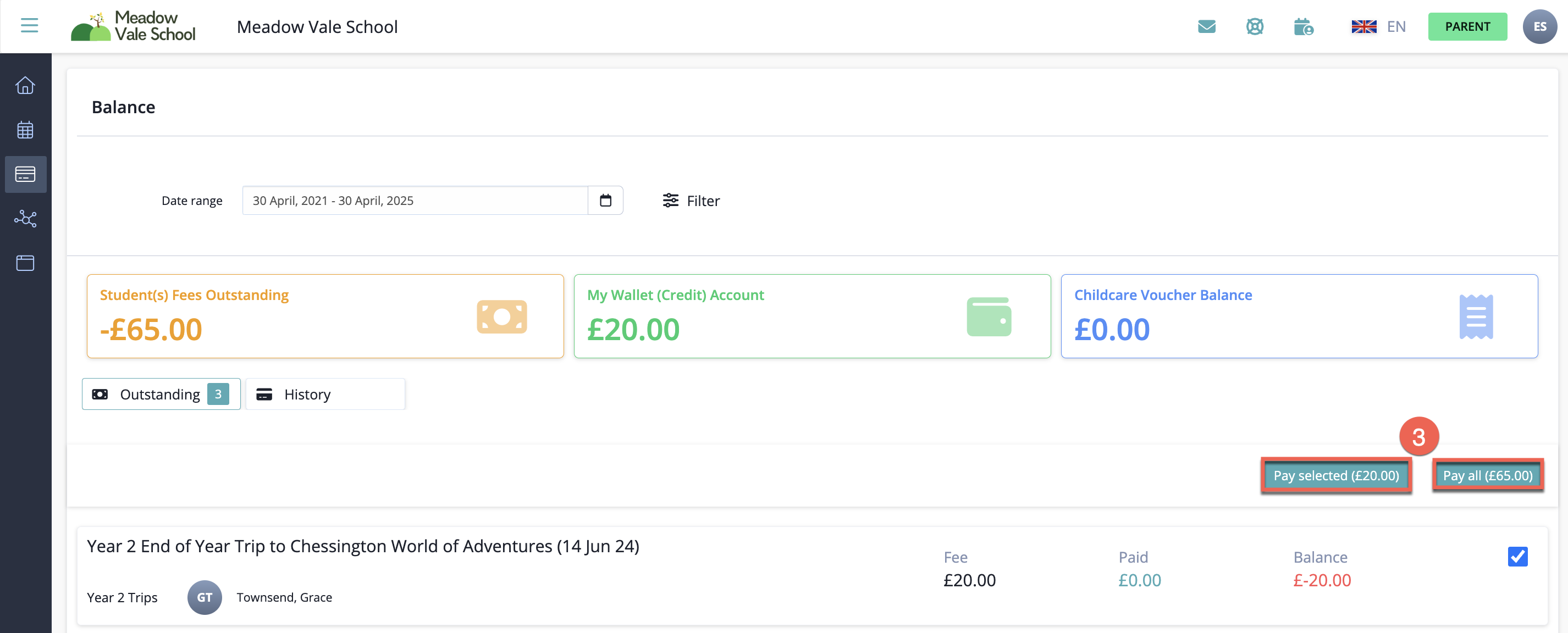
To make a payment, click the tick box next to the corresponding charge and either click Pay Selected or Pay all.
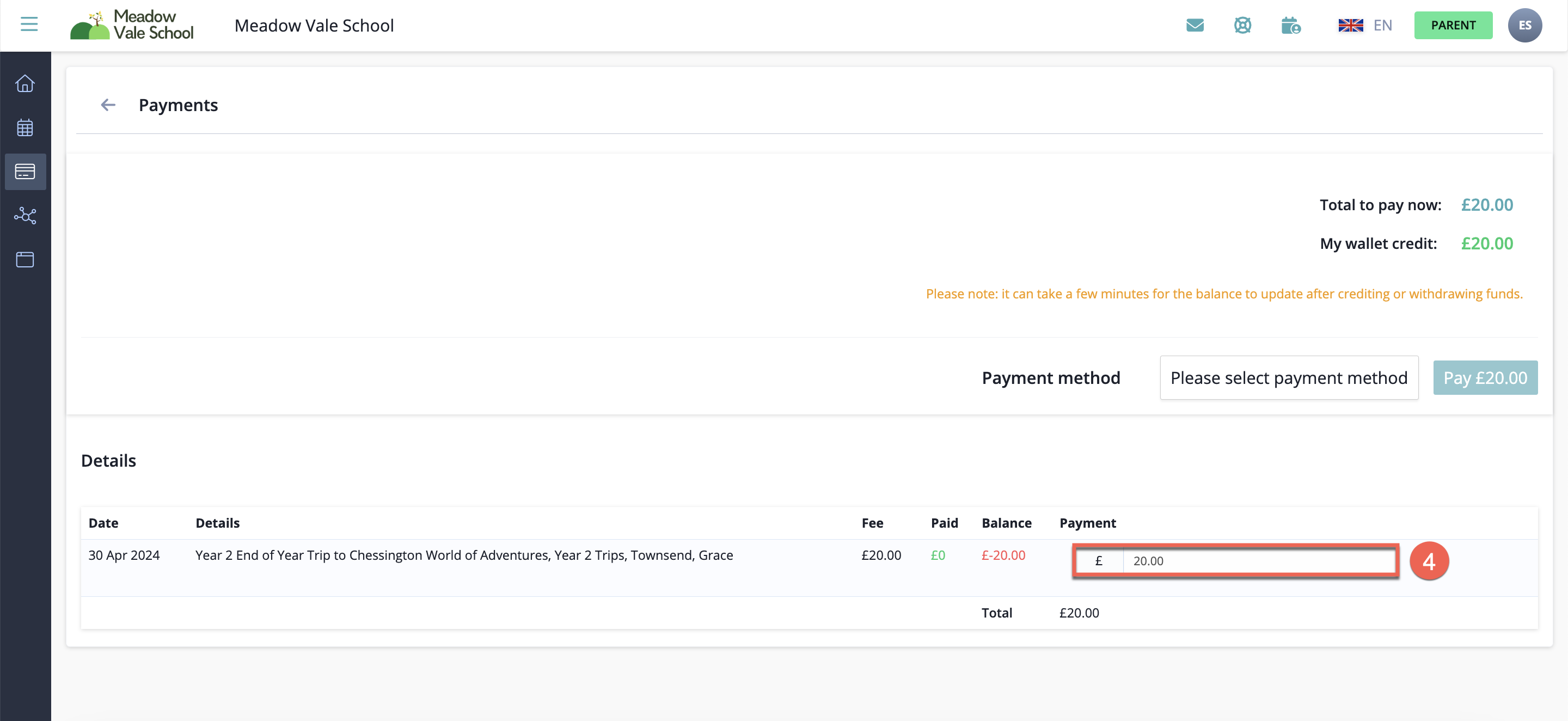
- Once you have selected the total amount you wish to pay, you will be taken to a payment summary screen. You do not have to pay the full amount and can edit this within the 'Payment' box.
To pay by credit card select Stripe
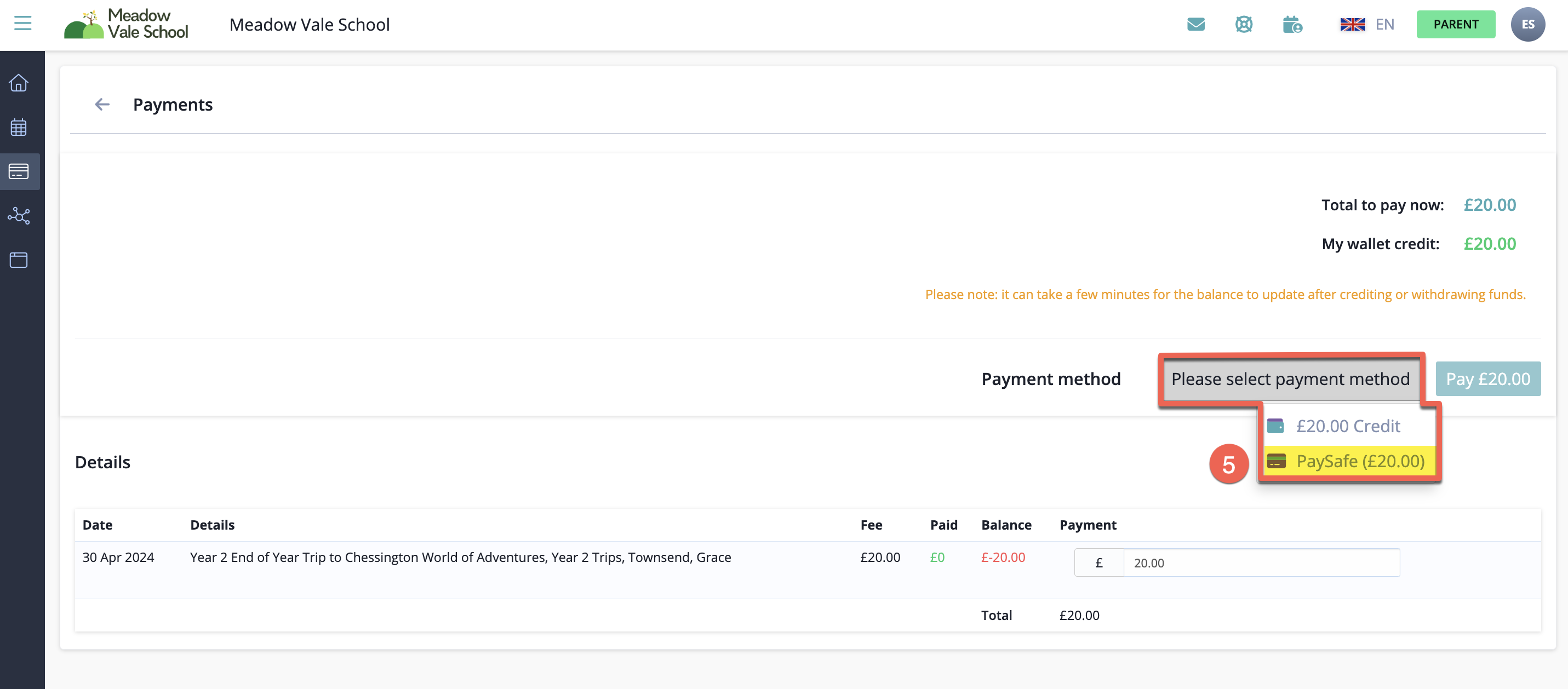
When selected, a pop-up box will appear on screen like the one shown in the image below.
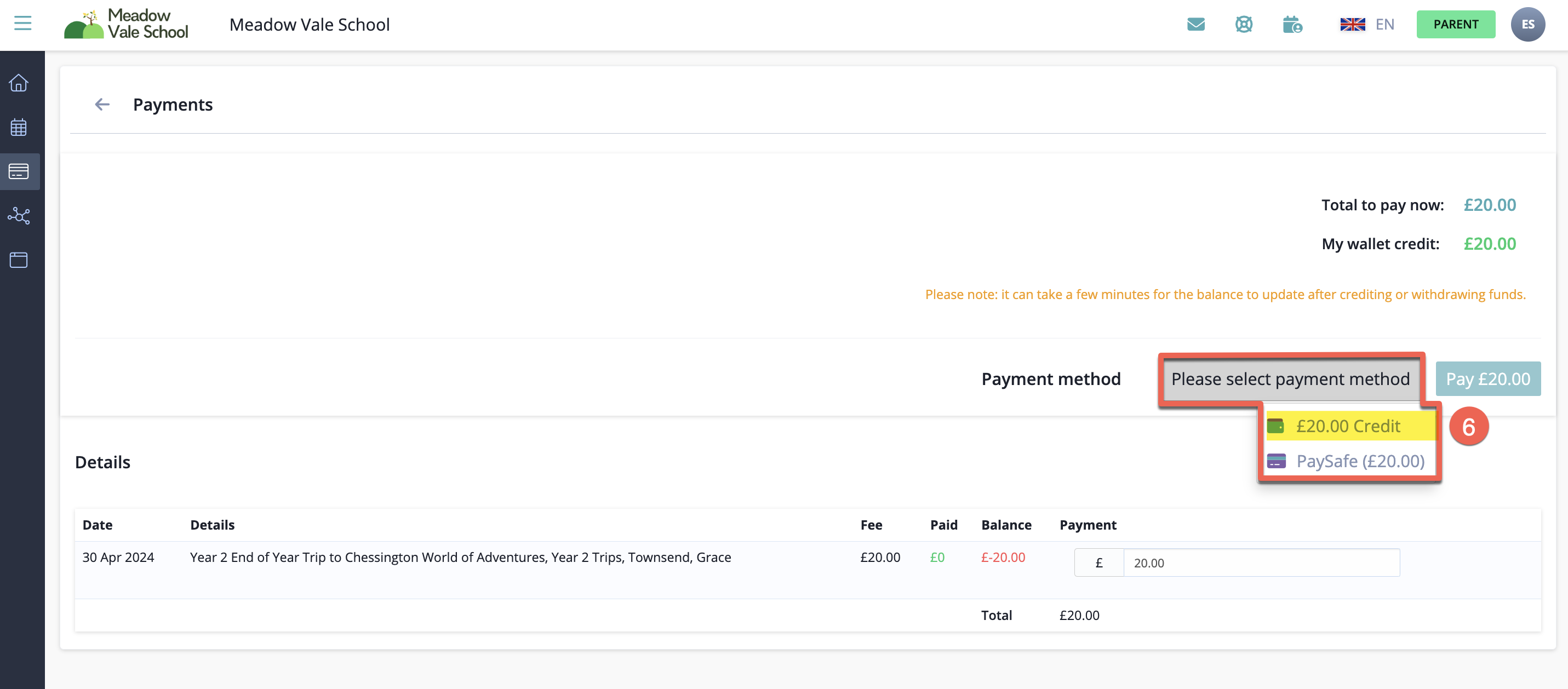
- To pay using credit in your wallet select ' XX Credit'. The button beneath will change from the payment provider to say 'Pay xx amount With Credit Balance'. Click the button to confirm.
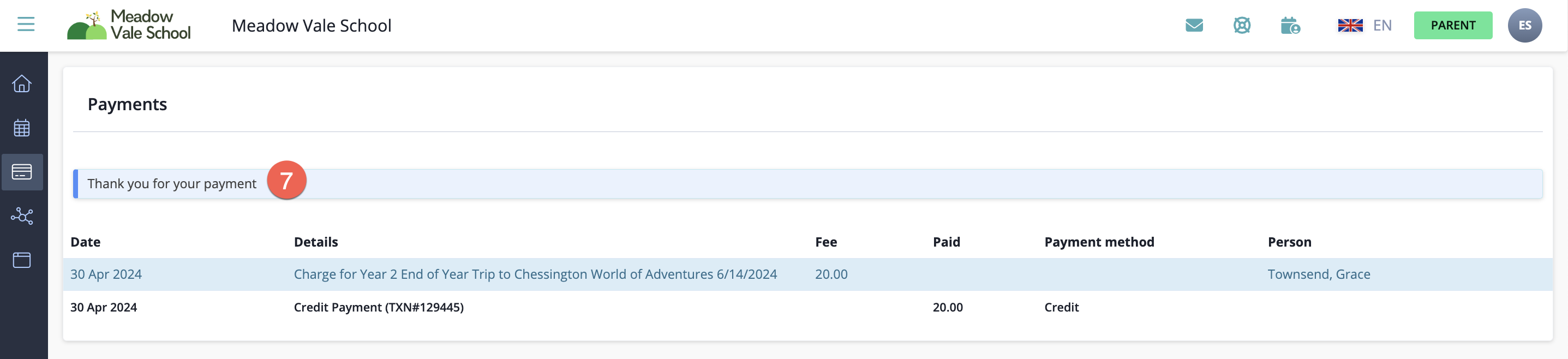
A 'Payment Complete' summary screen is shown and you will receive an email confirmation of the payment.
Making a Booking
Click on Activities & Clubs or one of the Available Signups on your Home tab to see all the different events or clubs available to your child(ren).
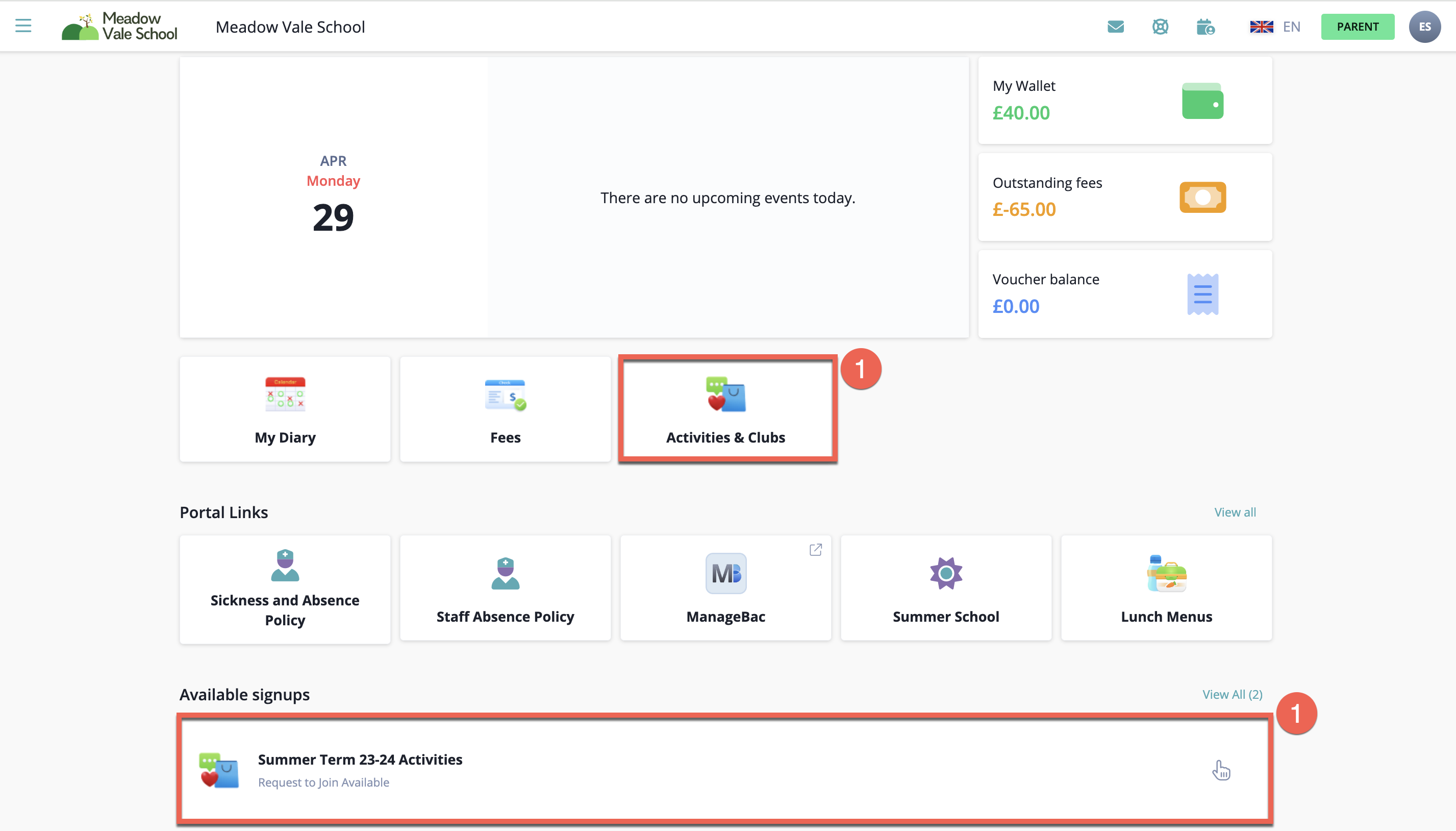
Clicking on the Activities & Clubs tab will take you to a page similar to this where you can select the activity:
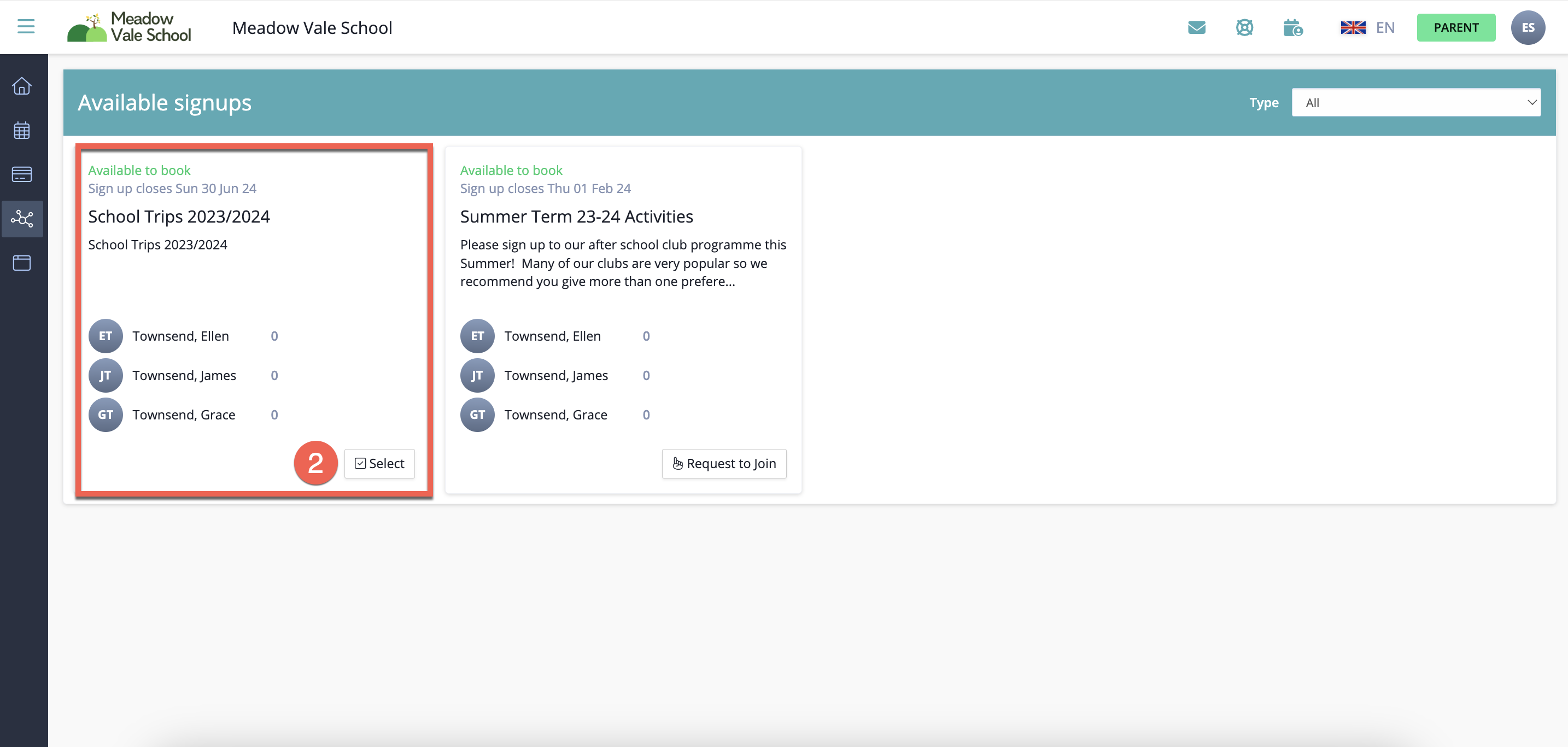
- Click the tickbox next to the date of the activity you want to book. If more than one of your children is eligible for the activity you can select the activity for all.
Next, click 'Book'.
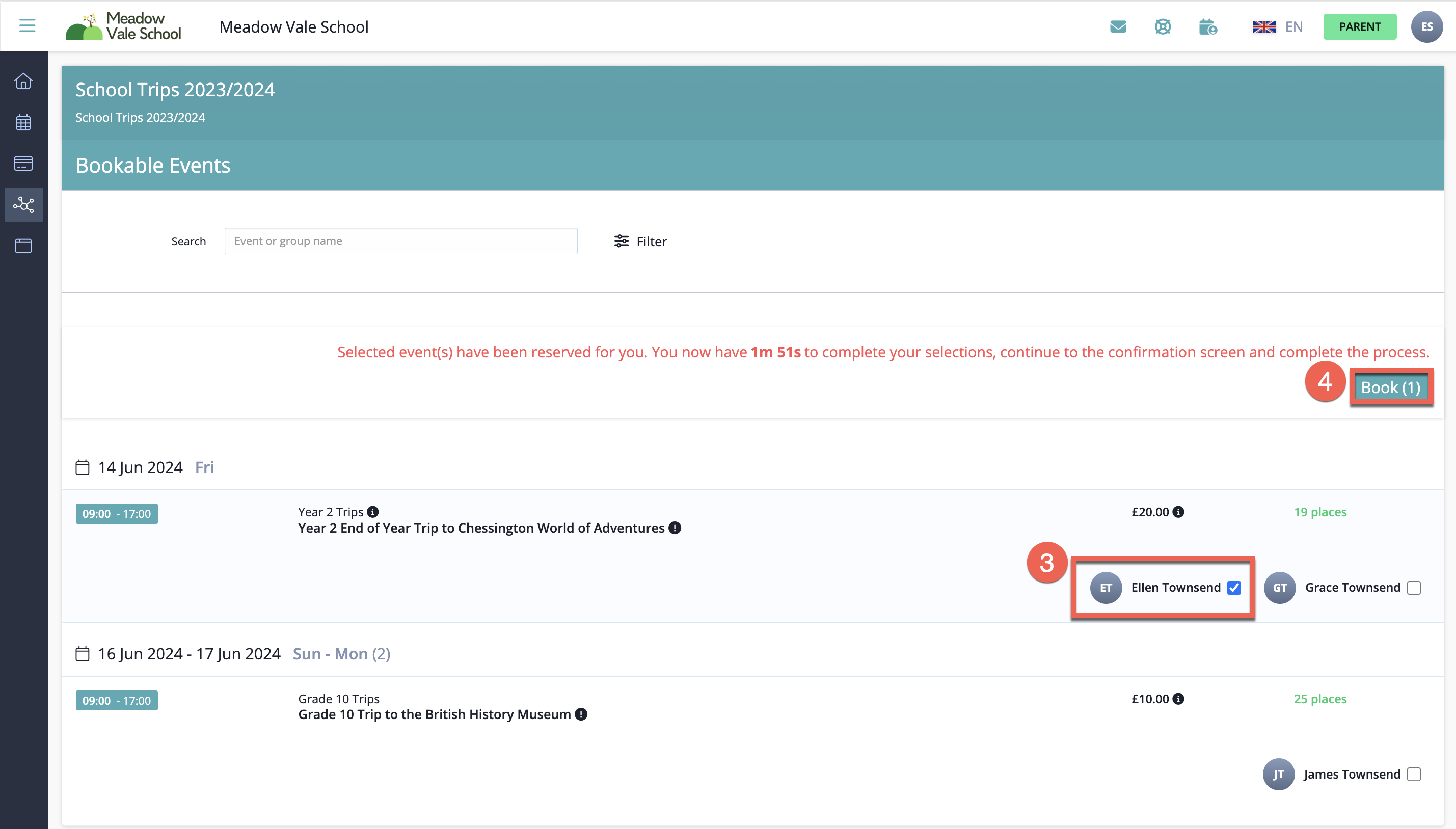
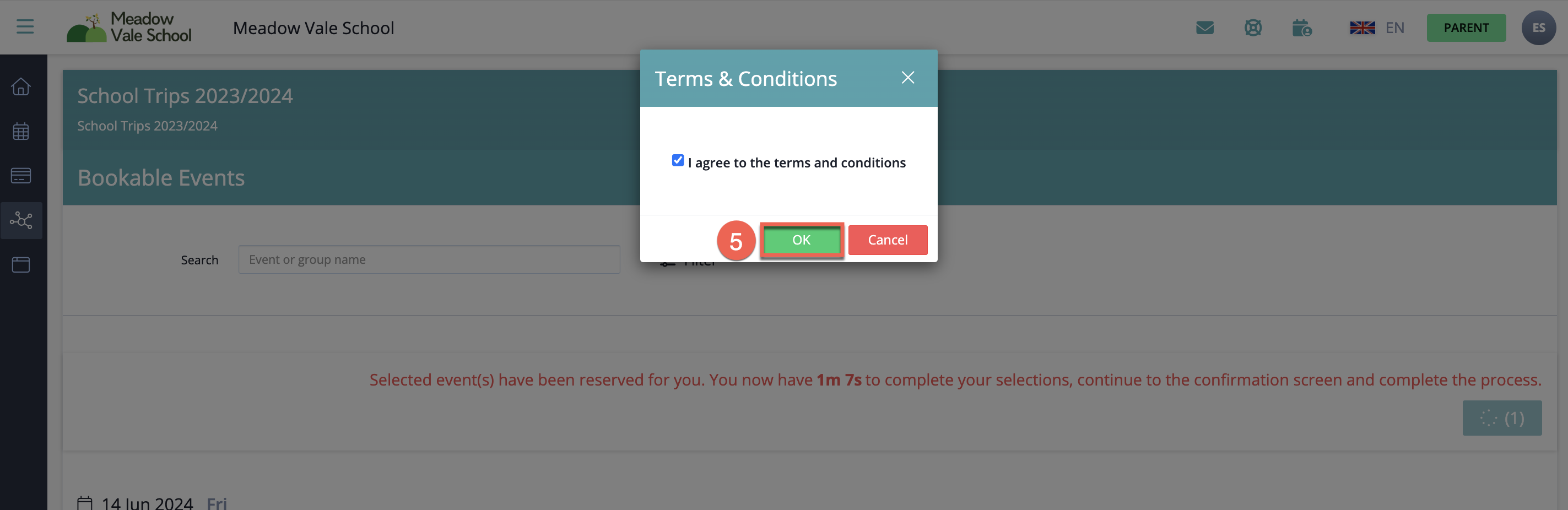
The School's terms and conditions will appear in a pop-up box. Select the tickbox and click 'OK' to confirm that you accept the Terms & Conditions.
A booking confirmation screen will show a summary of charges for the events you have selected.
- Select your preferred payment method from the options available.
- Once you have selected the payment method, click 'Pay'.
If you want to remove or select more events click 'Edit/Add More'. If you are happy with your selection you can choose a payment method.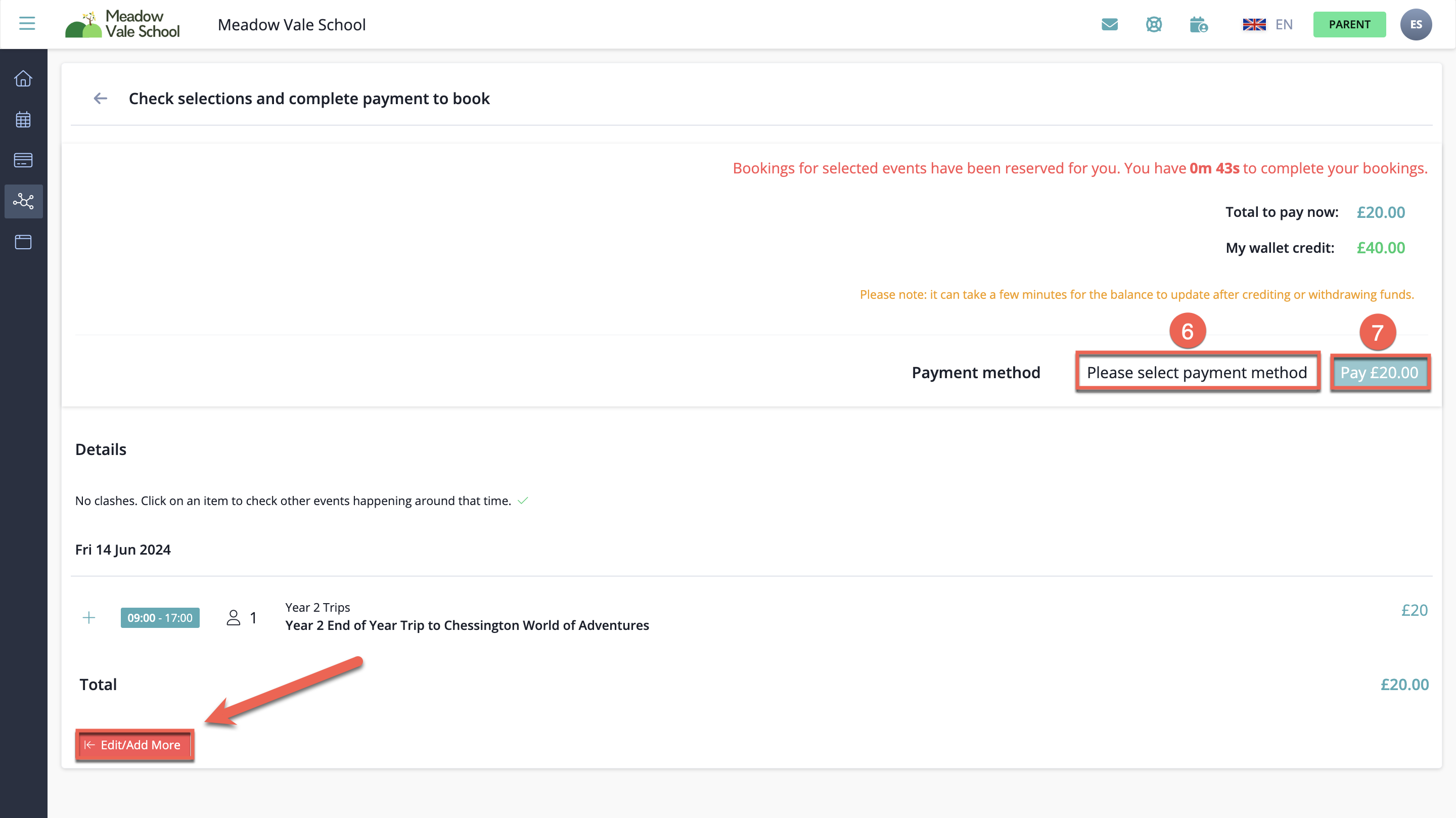
If you have credit in your wallet, you can choose to pay using this credit by selecting 'Credit'. The payment buttons available will change, click 'Pay xx amount With Credit Balance'.
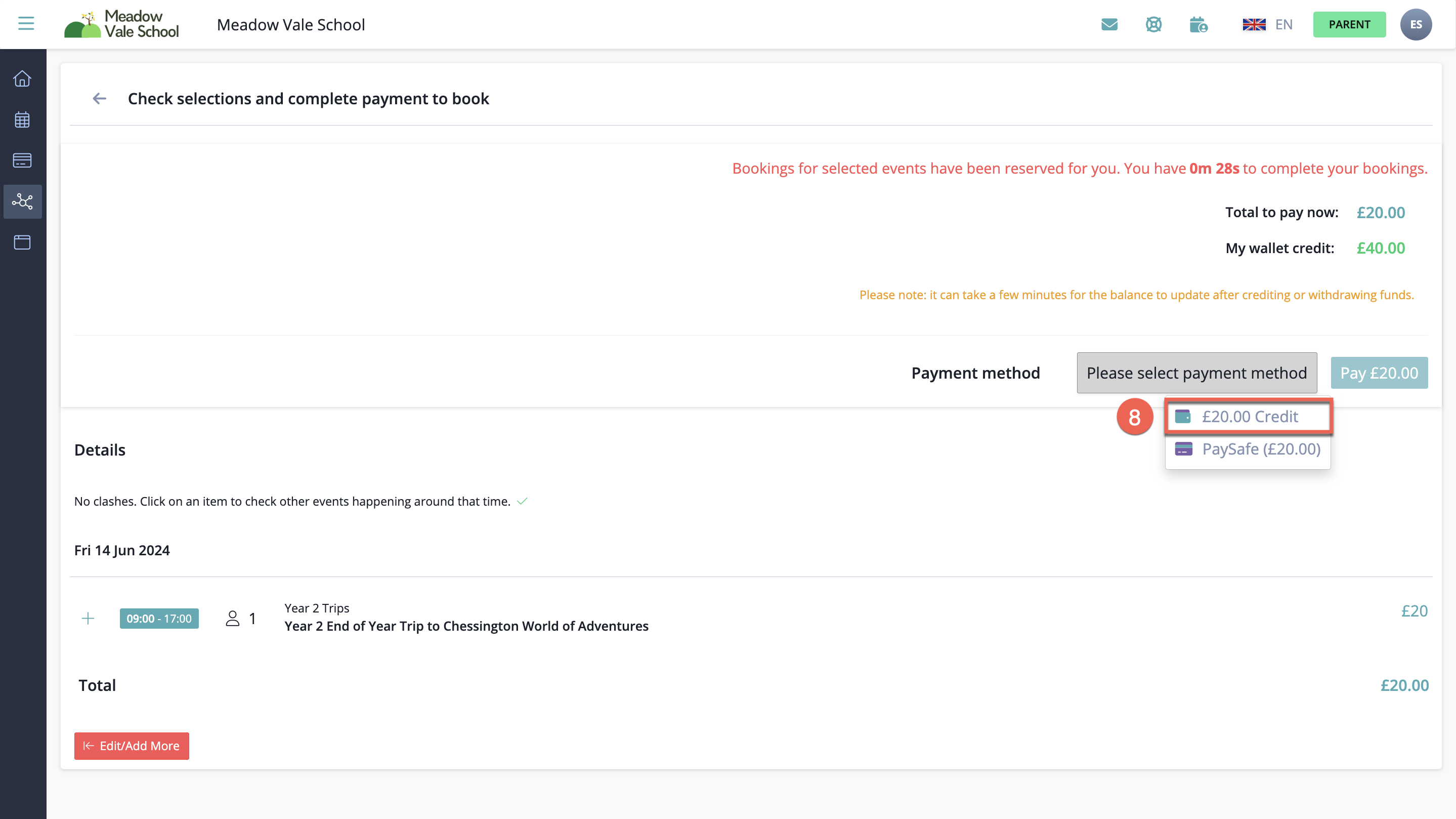
To pay by credit/ debit card select 'Pay xx amount Online'
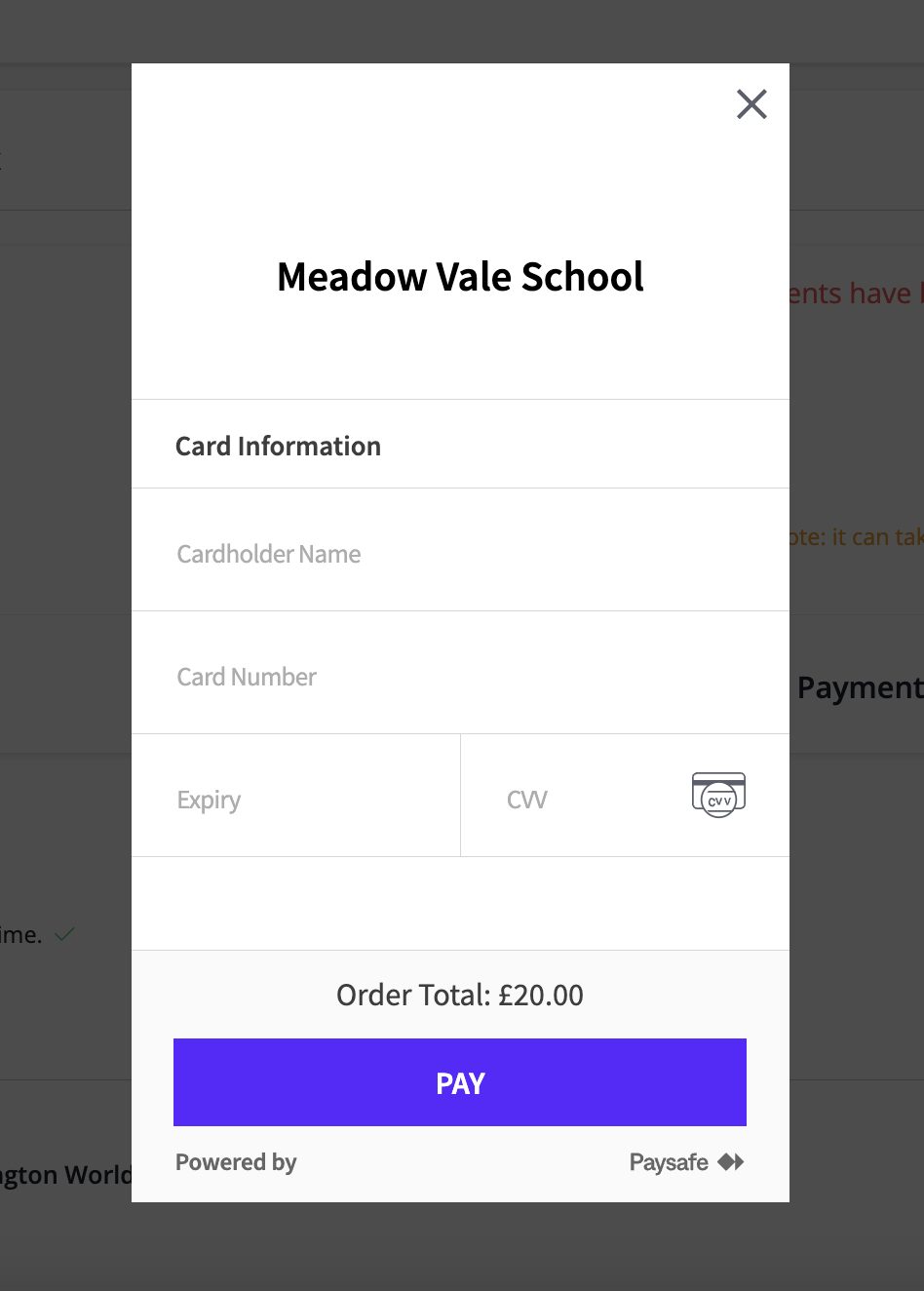
When selected, a pop-up box will appear on screen like the one shown in the image below. Depending on which payment provider your school uses, enter the fields that are required:
- email (associated with your SchoolsBuddy Account)
- Cardholder name
- Credit/Debit card number
- Expiry Date (Month/Year)
- CVC
When the correct details have been entered, click the blue 'Pay xx amount' button.
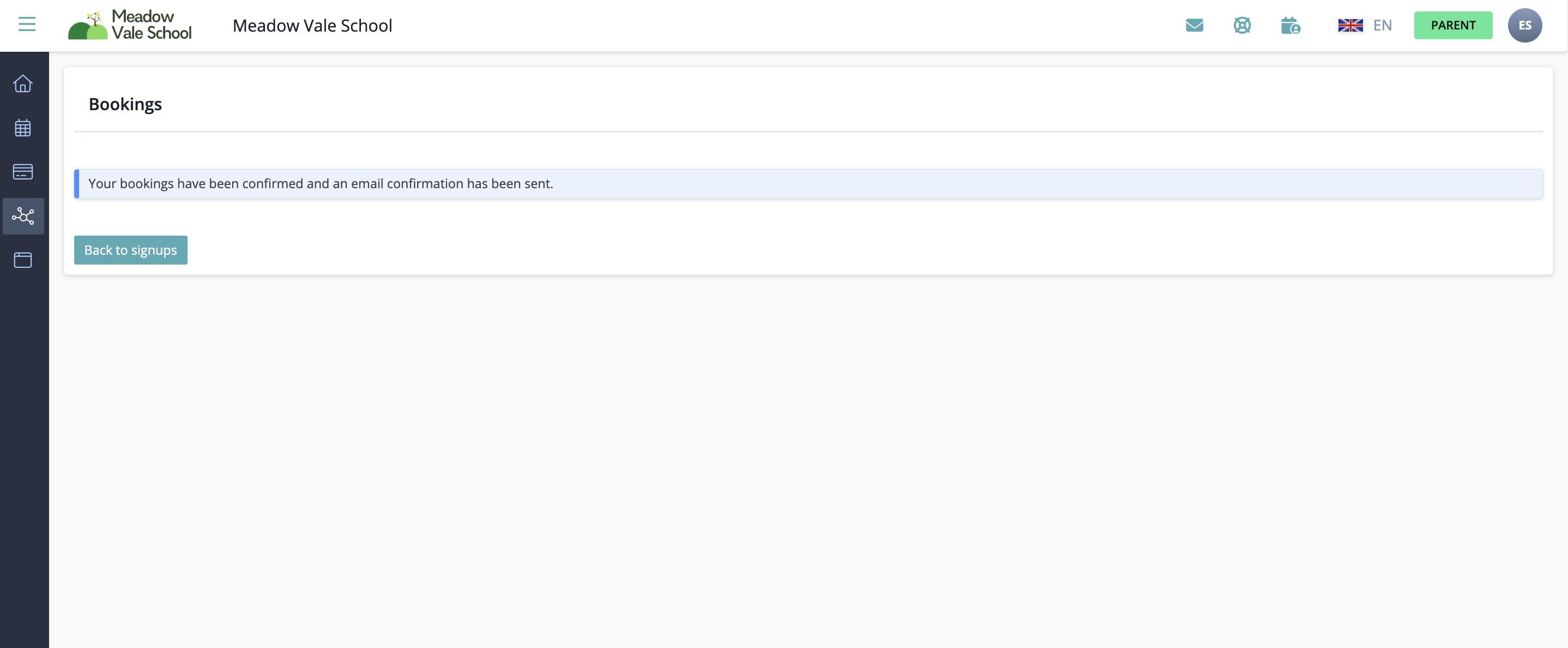
A 'Booking Confirmation' summary screen is shown and you will receive an email confirmation of the payment.
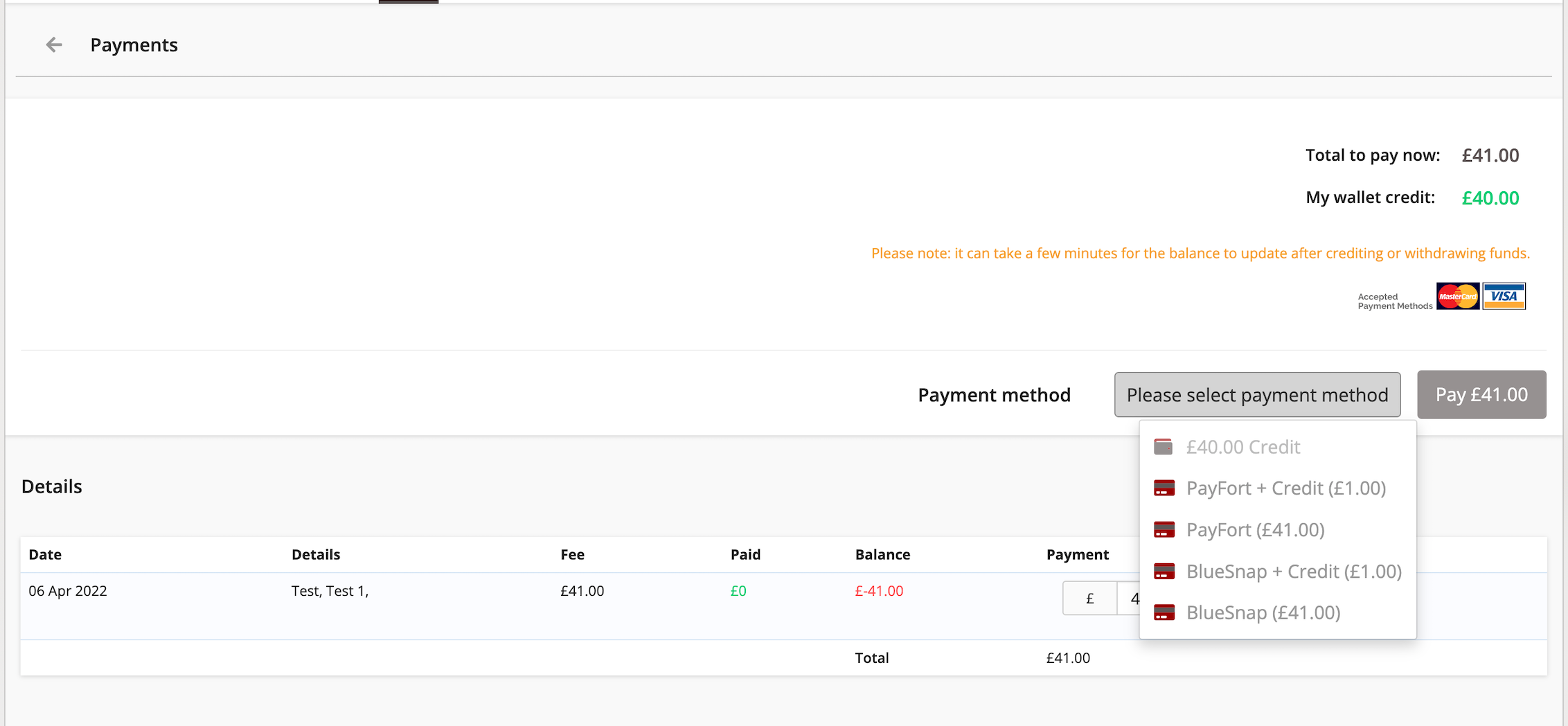
You are also able to part pay using different methods, for example a mixture of credit and card.
Related Articles
Extra Curricular Activities
EXTRA-CURRICULAR ACTIVITIES (ECA) Extra-curricular activities (ECAs) are regular school-based activities outside the normal school timetable. We offer a full range of academic, art, sport, service and cultural activities. Through ECAs, we aim to: ...
SchoolsBuddy: Making a Parent Teacher Interview Booking
Making a Parents Teacher Interview Booking Click the on the Main Menu icon in the top left corner and then Activities & Clubs (this may be labelled differently depending on your School). If necessary, you can filter the Type of signups to only show ...
Health and Safety: Bringing Medicine to School
If your child needs to bring medicine to school, you must follow the procedures outlined below: Bring only the dose needed for that day; Take the medicine to the School Nurse, or designated staff member. The School Nurse or staff member will ...
Camps and Excursions
Camps and Excursions The School plans regular excursions for all students that relate to the curriculum. These include local excursions and extended excursions (school camps and trips). SCHOOL EXCURSIONS At the beginning of enrolment, Primary and ...
AISHK School Age Guide until 2026
School Starting Age Guide For entry into Reception in January, students must be four years of age by April 30 of their year of entrance. For entry into Preparatory, students must be five years of age by April 30 of their year of entrance. Enrolment ...